Chapter 03 · Attendance
Attendance
Set working hours, see who is in today, and fix mistakes.
Set work schedules
A work schedule says which days and hours an employee works. Attendance uses it to decide who is on time.
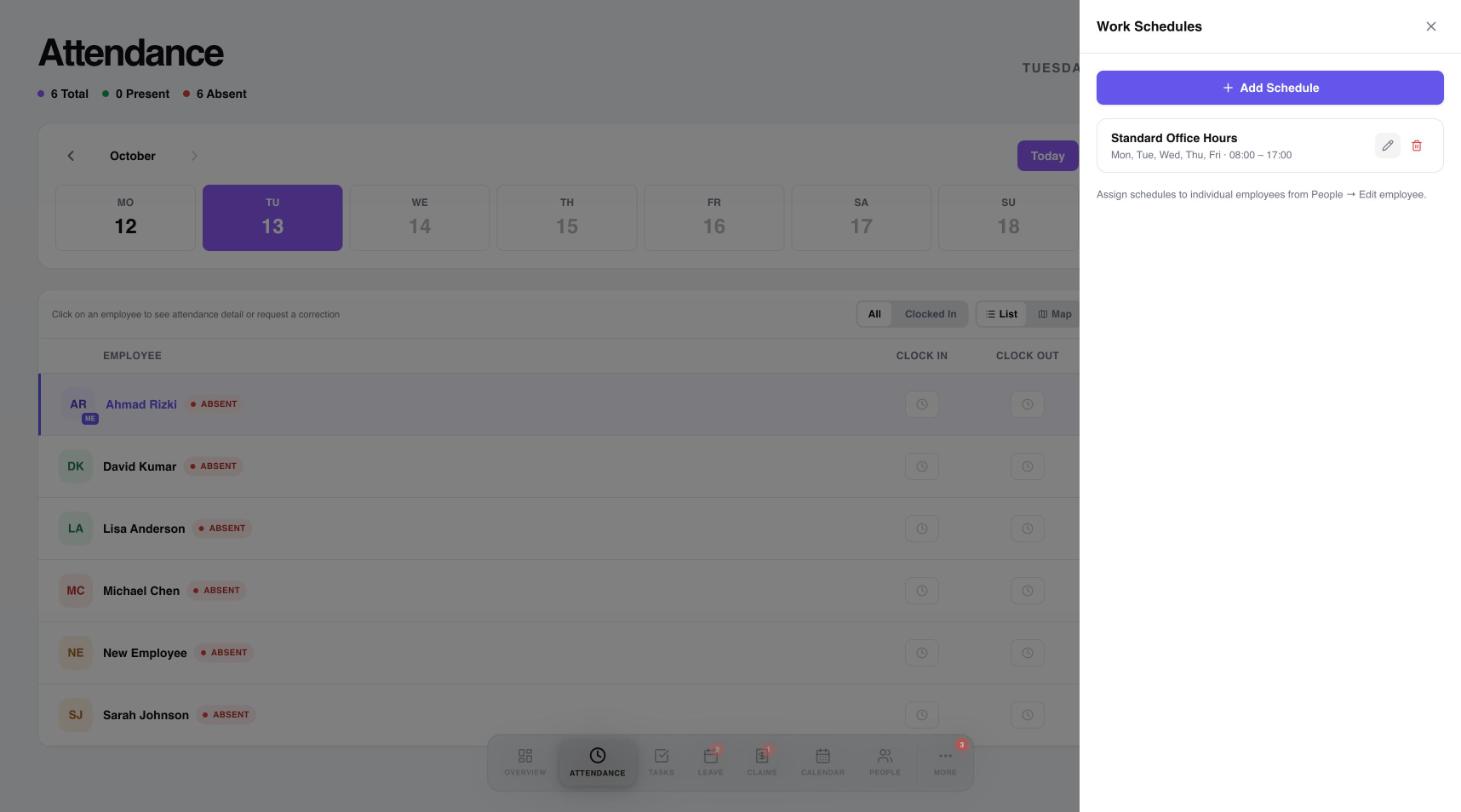
- Open Attendance and select Manage on the Work Schedules card.
- Select Add Schedule to create one, or the pencil to change an existing one.
- To give a schedule to someone, open People, edit the employee and choose it under Work schedule.
 123
123- Add a new schedule.
- Edit a schedule.
- Delete a schedule.
Attendance
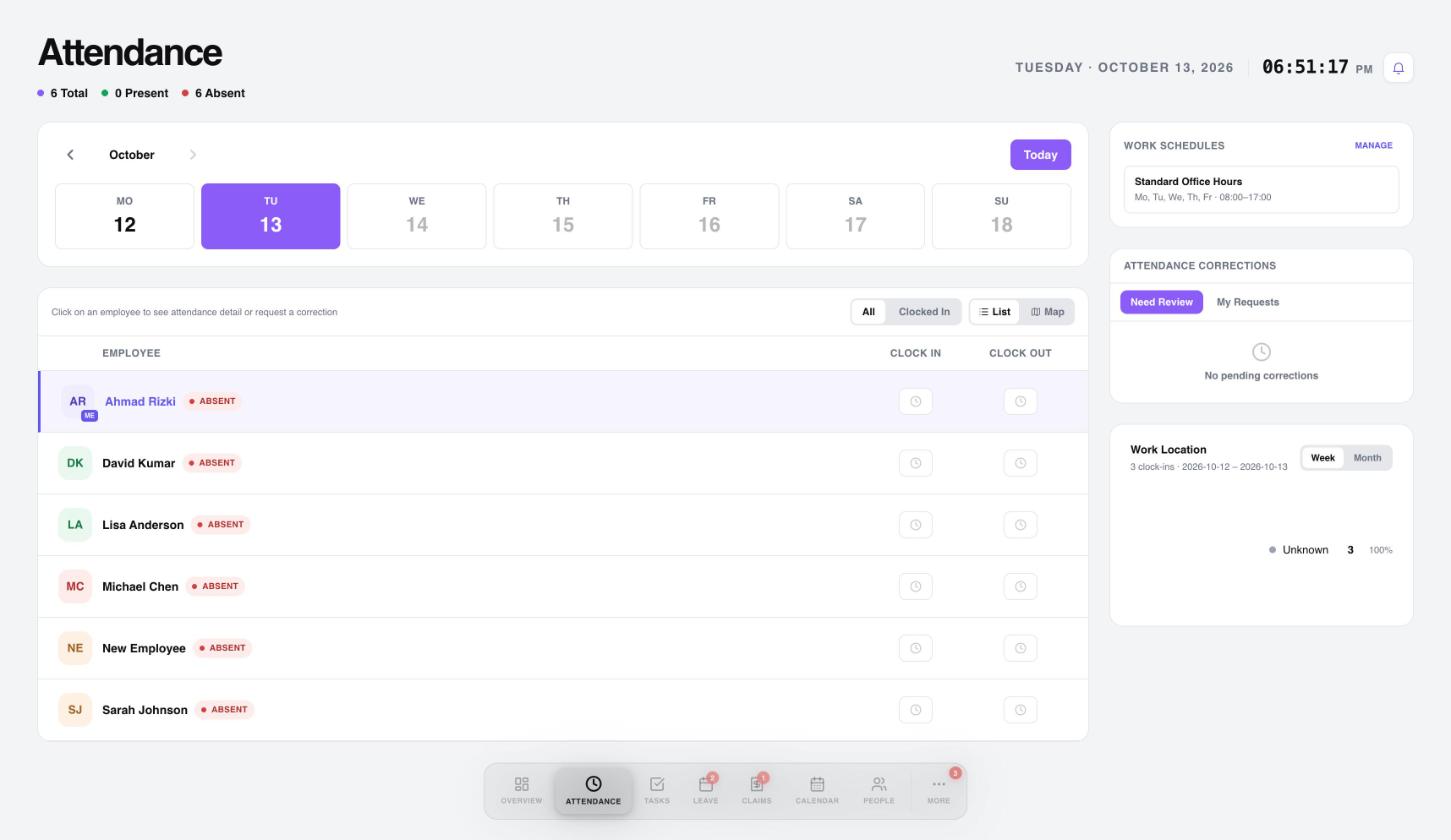
Open Attendance to see who is in today.
 12345
12345- Pick the day to look at.
- Show everyone or only people who are clocked in.
- Switch between list and map.
- Work schedules.
- Attendance corrections waiting for review.
- Clocking in and out: employees clock in on the Workived mobile app. The web overview shows the clock but asks them to use the mobile app.
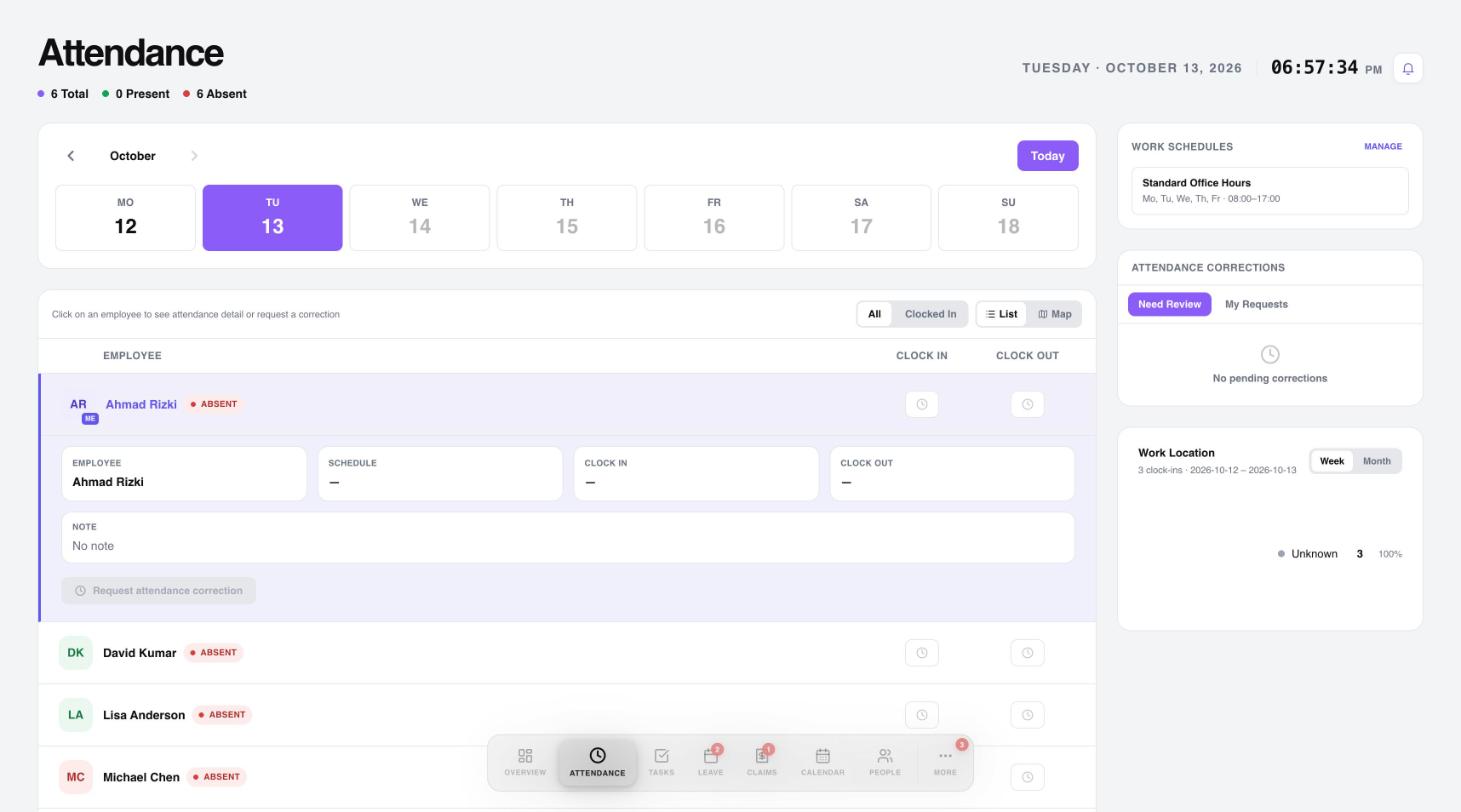
- Details: select a name to see that day's schedule, clock in, clock out and note.
- Corrections: if a clock time is wrong, request a correction from the expanded row. Pending requests appear under Need Review, and each person's own requests under My Requests.
 12
12- Select a name to see that day's schedule, times and note.
- Request a correction. It is greyed out when there is no clock-in for that day.
Need a hand?
Email my@workived.com and we will help you out.