People
Add employees, control who can log in, keep records current, and handle people who leave.
Add your team
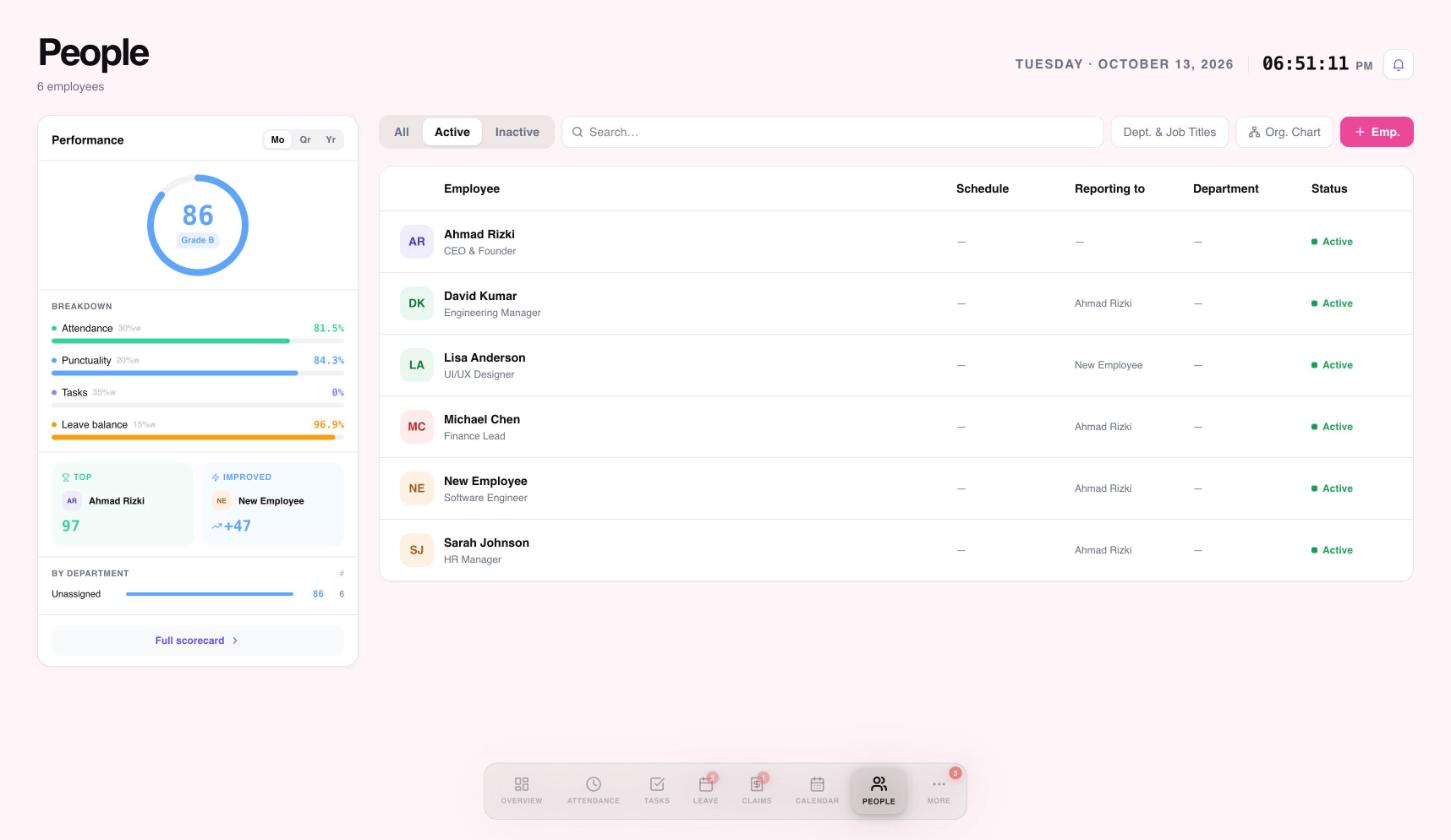
Open People to see everyone in your company, with their schedule, manager, department and status.
 123
123- Filter by All, Active or Inactive.
- Search by name.
- Add an employee.
Add an employee
- Select + Emp. at the top right.
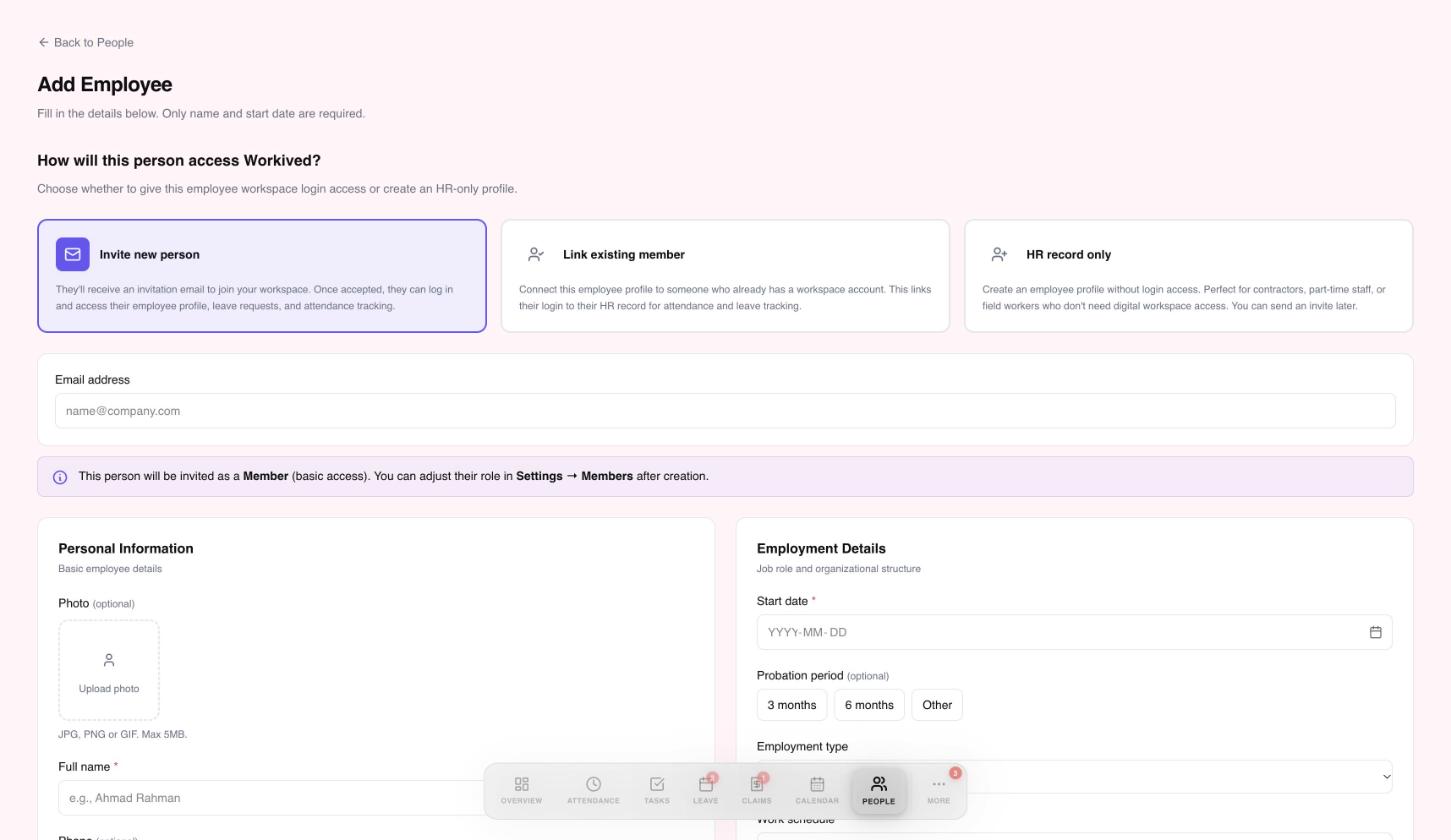
- Choose how this person will access Workived: Invite new person (they get an email invitation), Link existing member (connect a profile to someone who already has a workspace account), or HR record only (a profile without a login, handy for contractors or field staff; you can send an invite later).
- Enter the full name and start date. These are the only required fields.
- Add optional details such as photo, phone, probation period, employment type and work schedule.
- Save the employee.
 1234
1234- Choose how this person gets access.
- Email address, needed only when you invite someone.
- Start date is required, along with the full name.
- New invitees join as a Member. Change roles in More, then Team members.
The free plan includes up to 10 employees.
Check who has access
Open More, then Team members. The page lists everyone who can log in, their role, and whether they are linked to an employee profile.
 123
123- Invite by email and pick a role.
- Each person's role.
- Missing HR shows logins that have no employee profile.
Edit details and end employment
Edit an employee
- On the People page, select the employee's name.
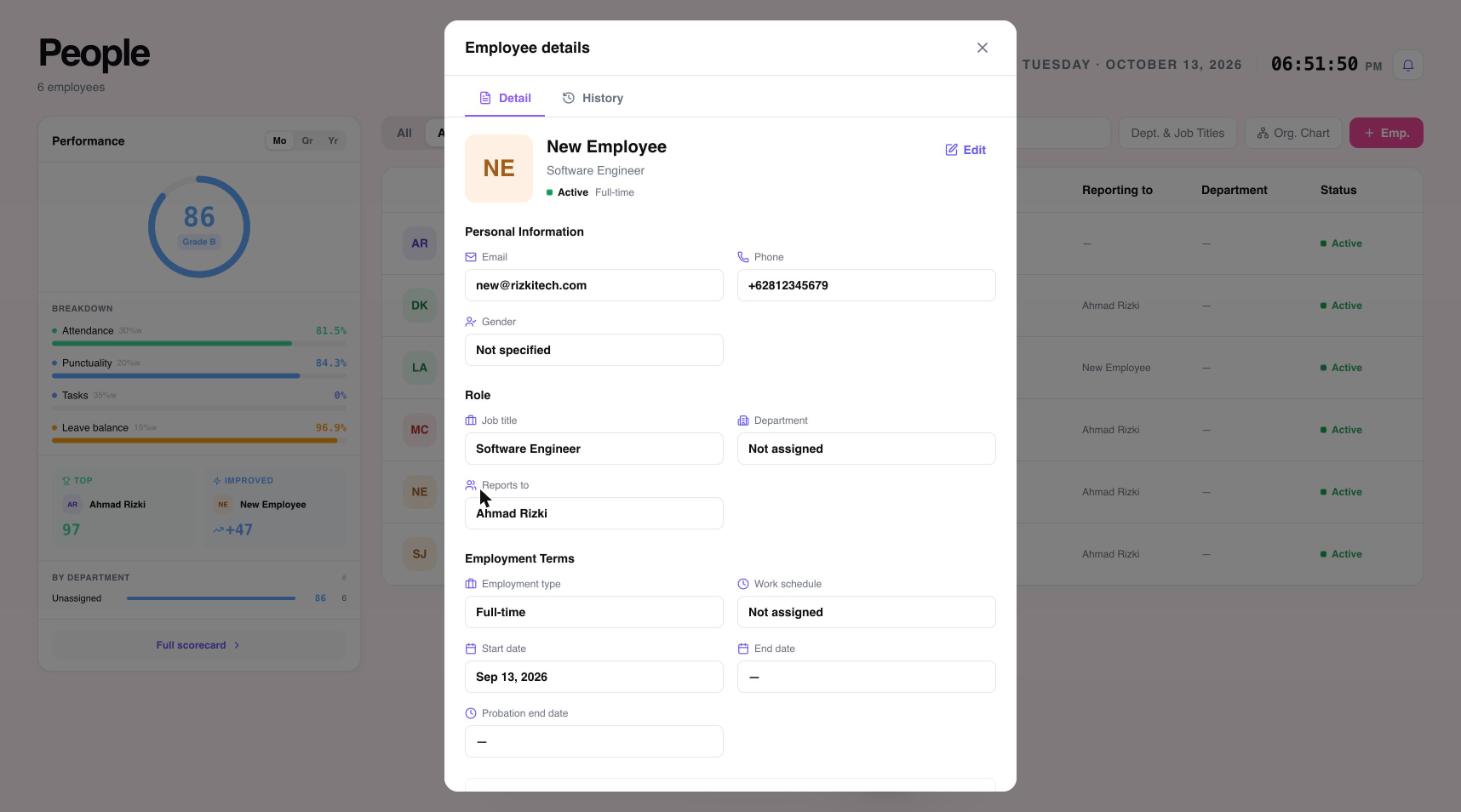
- Review their details, then select Edit to change them.
- Save your changes. The History tab keeps a record of what changed.
 123
123- Edit this employee.
- History of past changes.
- Employment terms: type, work schedule, dates and probation.
End employment
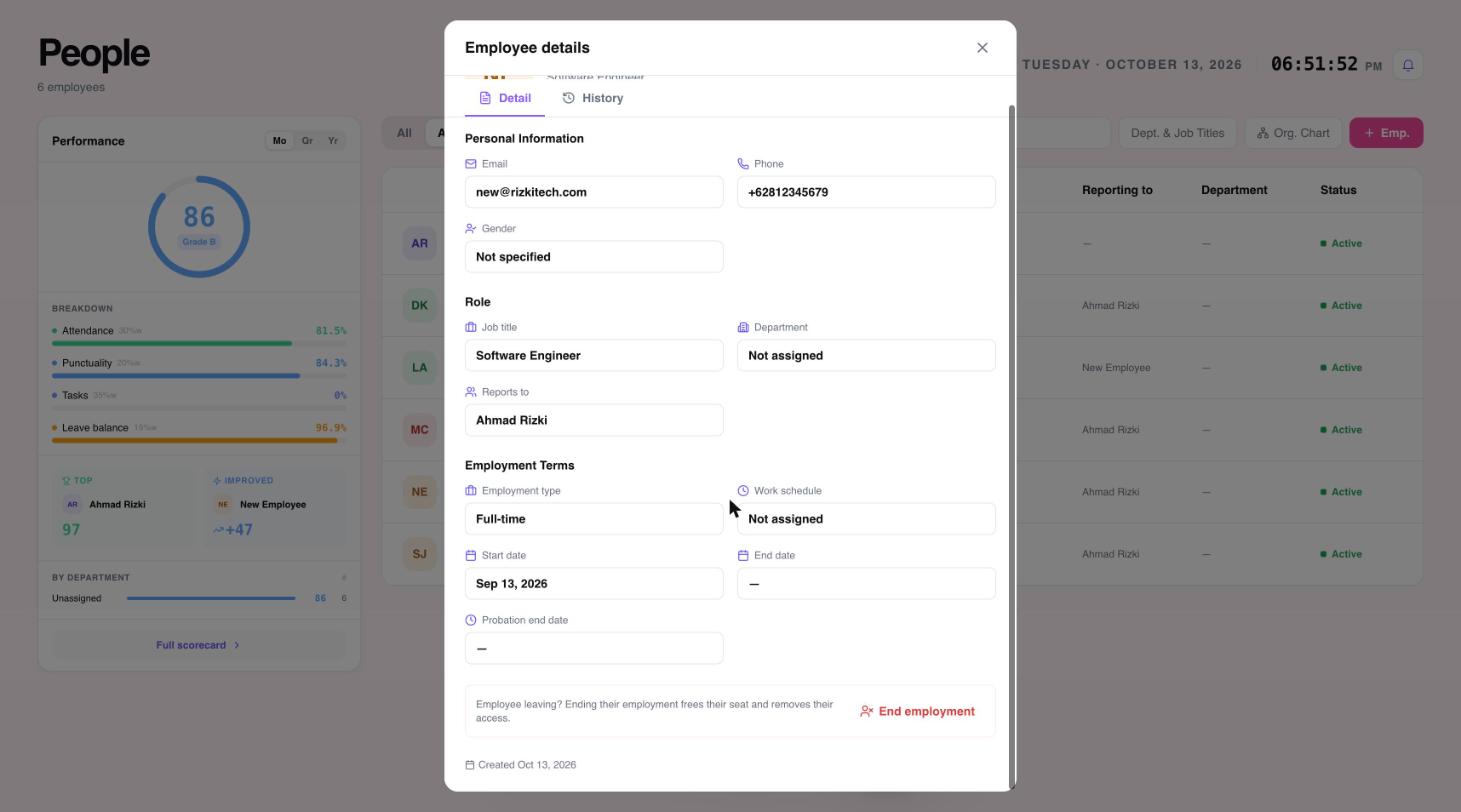
When someone leaves, open their details and scroll to the bottom of the panel. Select End employment. This frees their seat and removes their access to Workived.
 1
1- End employment frees the seat and removes their access.
Workived does not delete HR records, so the employee's history is kept.
See who reports to whom
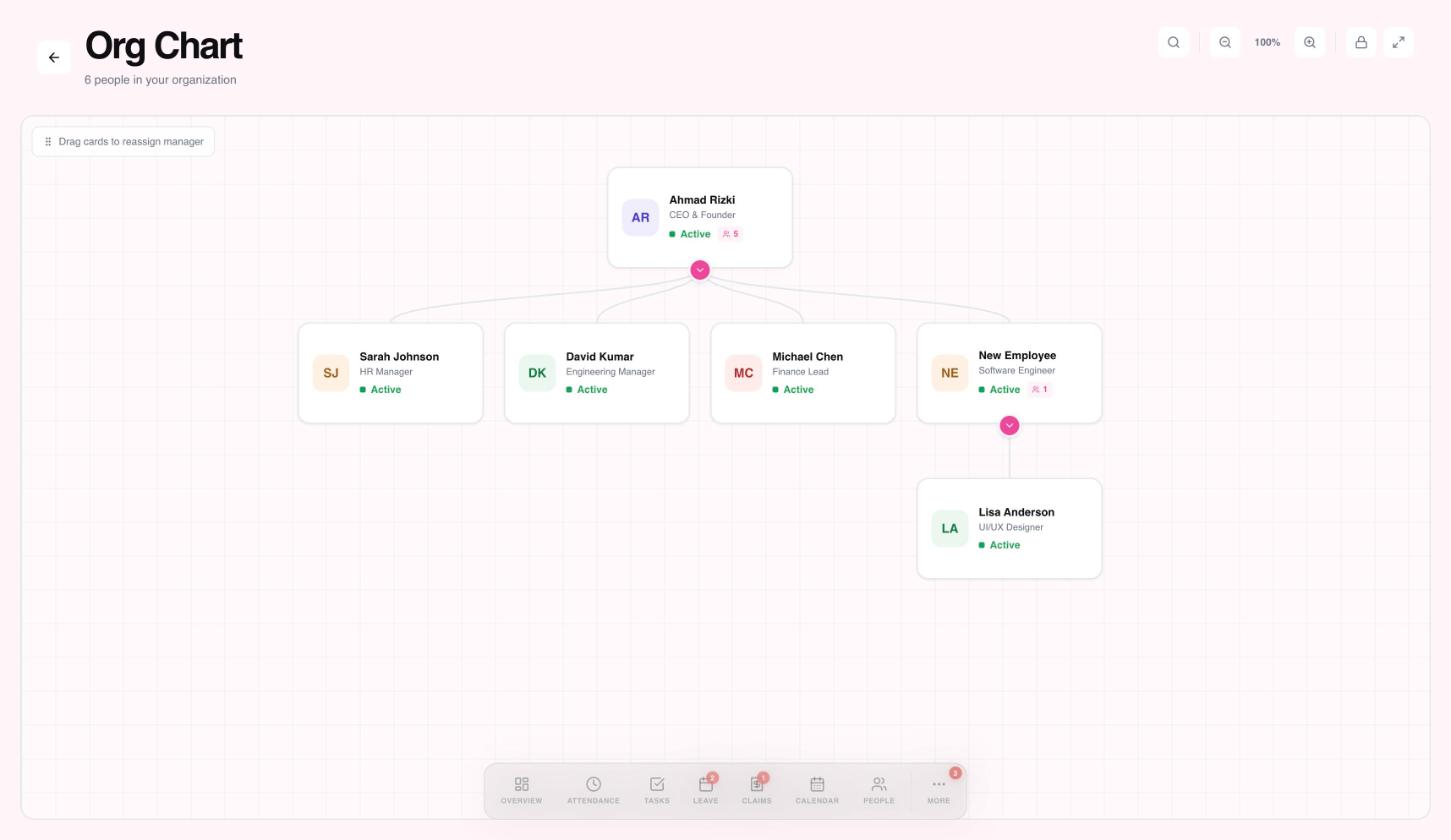
Select Org Chart on the People page to see reporting lines. You can drag a person's card onto a new manager to change who they report to.
 123
123- Drag a card onto another person to change who they report to.
- Search, zoom and full screen.
- Expand or collapse a person's team.
Need a hand?
Email my@workived.com and we will help you out.