Getting started
Learn the layout, take the tour, and find your profile.
Find your way around
Every page opens from the bar at the bottom of the screen: Overview, Attendance, Tasks, Leave, Claims, Calendar and People. More holds your profile, approvals, delegations, company settings, team members, the audit log and a light and dark switch. Red badges on Leave, Claims and More show how many requests are waiting for you.
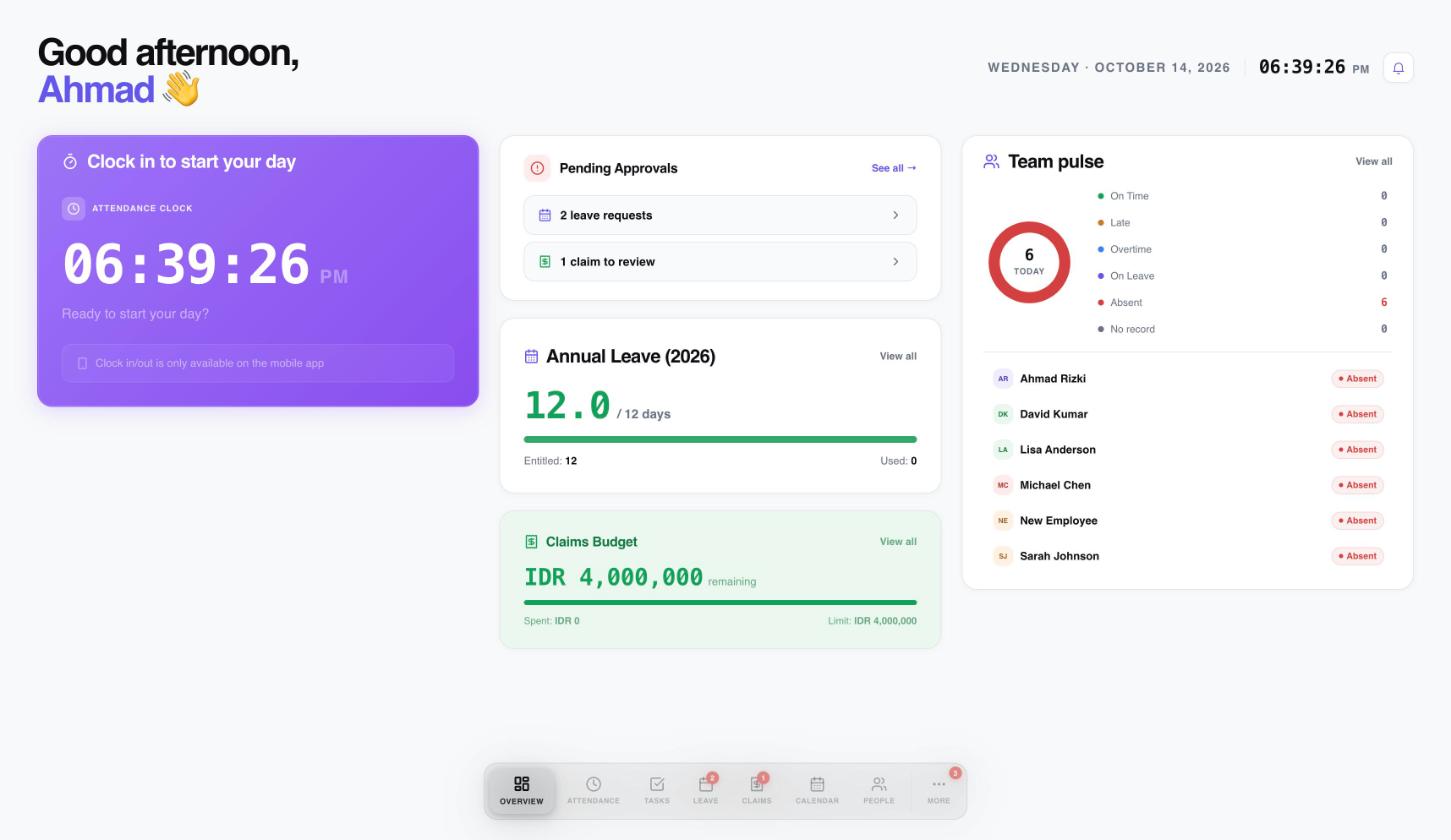
The Overview page is your home screen.
 1234
1234- The attendance clock. Clocking in happens on the mobile app.
- Pending leave requests and claims. Select a row to review them.
- Your own leave balance and claims budget.
- Team pulse: who is on time, late, on leave or absent today.
Pictures in this guide have numbered markers. Each number matches the list under the picture.
A good order for a new workspace: finish the setup wizard, add your team, then let people start using attendance, leave and claims.
Your first day
Workived shows you around the first time you use it, so you do not need to learn everything from this page.
The setup wizard
After you create your company, a short wizard collects what every company needs before people start using Workived:
- Work schedule: the days and hours your team works.
- Leave policies: the types of leave and how many days each person gets.
- Claim categories: the kinds of expenses people can claim, with monthly limits.
- Preview: check everything, then finish.
Not ready? Choose Skip for Now and finish later. Everything can be changed afterwards: schedules under Work schedules, leave policies under Leave, and claim categories under Claims.
The product tour
The first time you open Overview, a guided tour points out the navigation bar, notifications, the clock card, your balances and the team pulse. The Tasks page has its own short walkthrough of the board.
Want to see a tour again? Open More and choose Replay tour.
Your profile
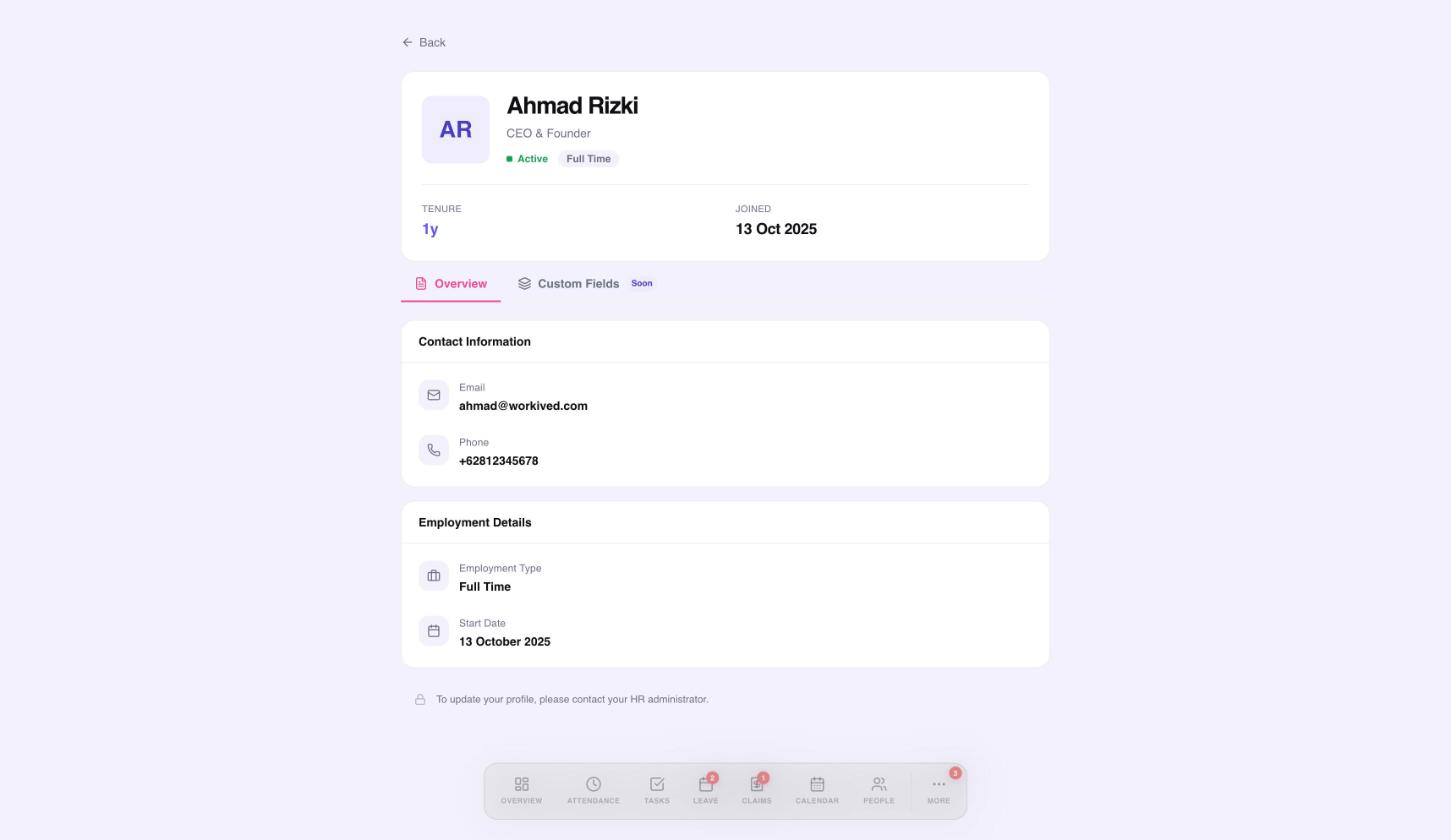
Open More, then My profile. Every employee can see their own profile: contact details, employment type, start date and how long they have been with the company.
 1234
1234- Name, role, status and how long you have been with the company.
- Contact information.
- Employment type and start date.
- Profiles are read-only. Ask your HR administrator to change them.
Profiles are read-only for employees. If something is wrong, ask your HR administrator to update it in People.
Need a hand?
Email my@workived.com and we will help you out.