Tasks
Plan, assign and track everyday work on a board.
The Tasks page is a board for everyday work. Each task is a card with its own code, such as RT-1, and moves across columns like To Do, In Progress and Done.
Find your way around the board
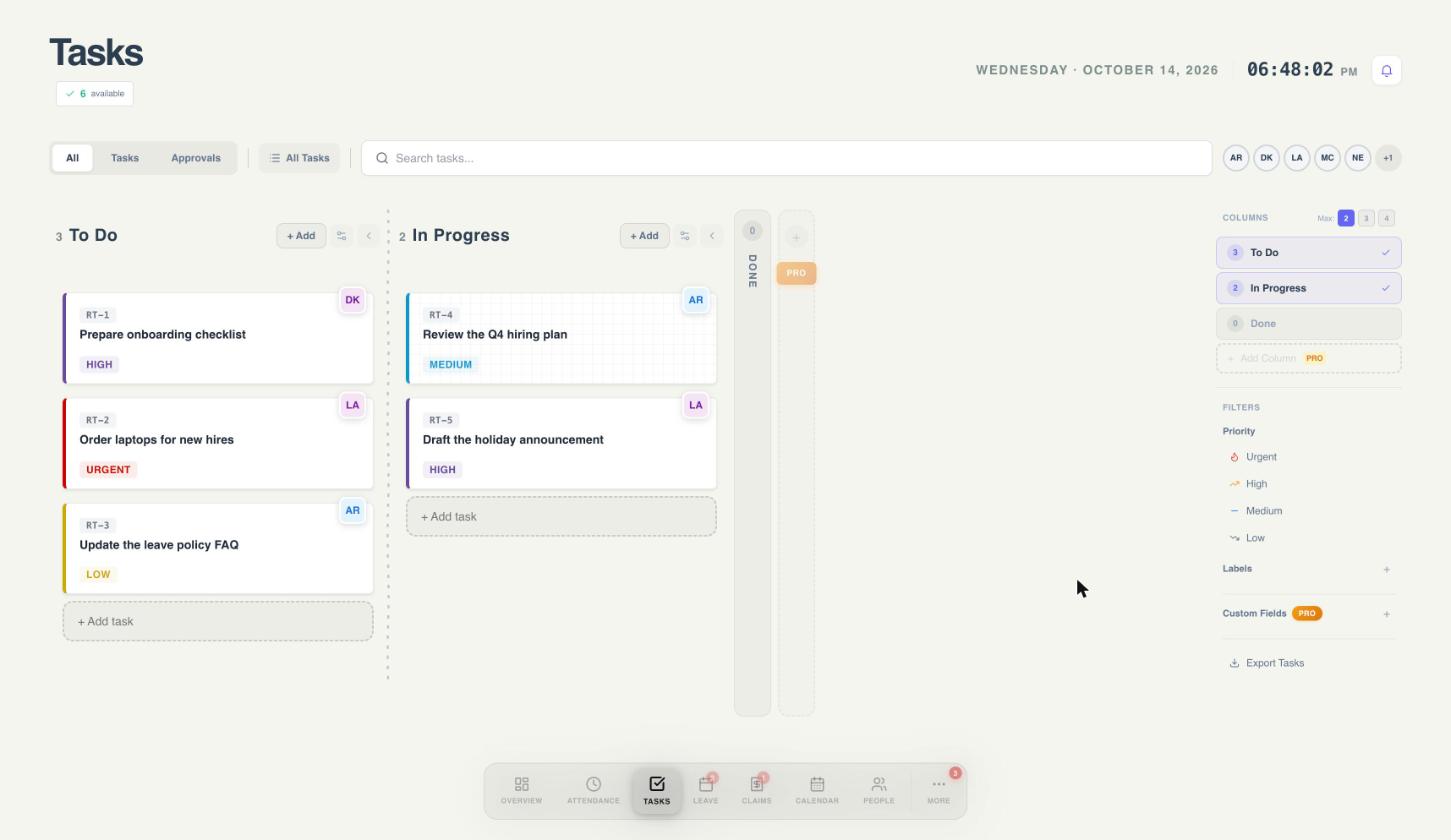 12345678
- Switch between All, Tasks and Approvals.
- Open the table view.
- Search tasks by title.
- Team avatars. Select one to see only that person's tasks.
- A column. The number is how many tasks are in it. + Add creates a task here.
- A task card: code, title, priority and assignee.
- A collapsed column. Select it to open it.
- Column choices, filters and export.
Create a task
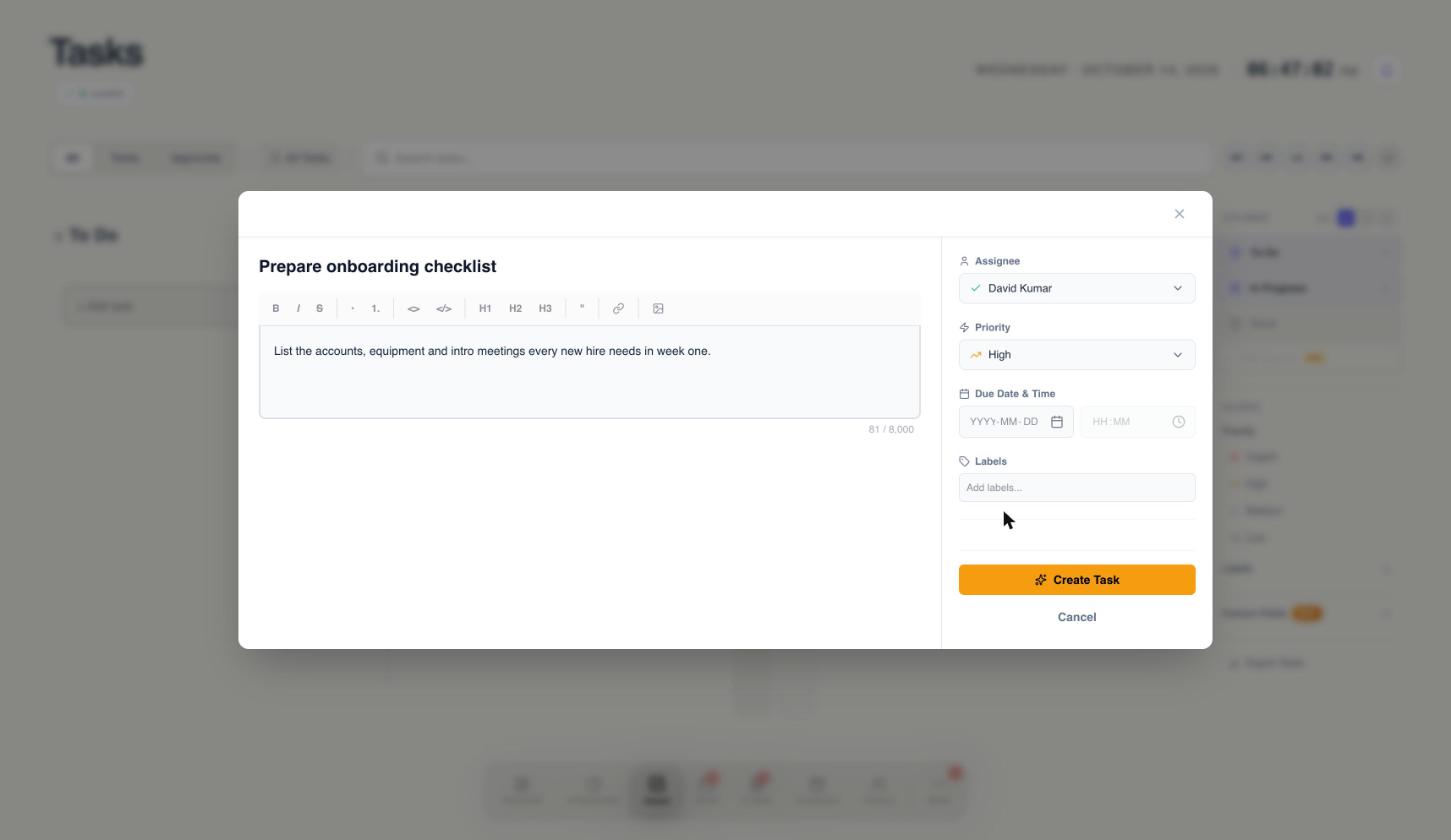
- Select + Add at the top of a column, or + Add task at the bottom. The task is created in that column.
- Type a task name.
- Add a description if you want to. The toolbar has bold, italic, lists, headings, a quote, links and images.
- Choose an Assignee. The list shows who is available and how many tasks each person already has.
- Set the Priority: Low, Medium, High or Urgent. New tasks start at Medium.
- Add a due date and time, and labels, if they help.
- Select Create Task.
 1234567
- Task name.
- Description, with bold, lists, headings, links and images.
- Assignee. The list shows who is available and how many tasks they have.
- Priority: Low, Medium, High or Urgent.
- Due date and time.
- Labels.
- Create Task.
The task code, such as RT-1, is created for you and appears on the card.
Move a task along
- Drag the card to another column as the work moves forward.
- Dragging a card into a column that is marked complete, such as Done, completes the task for you.
- Collapsed columns show as thin strips. Select one to open it. The 2, 3, 4 buttons in the side panel set how many columns stay open.
Open a task to add detail
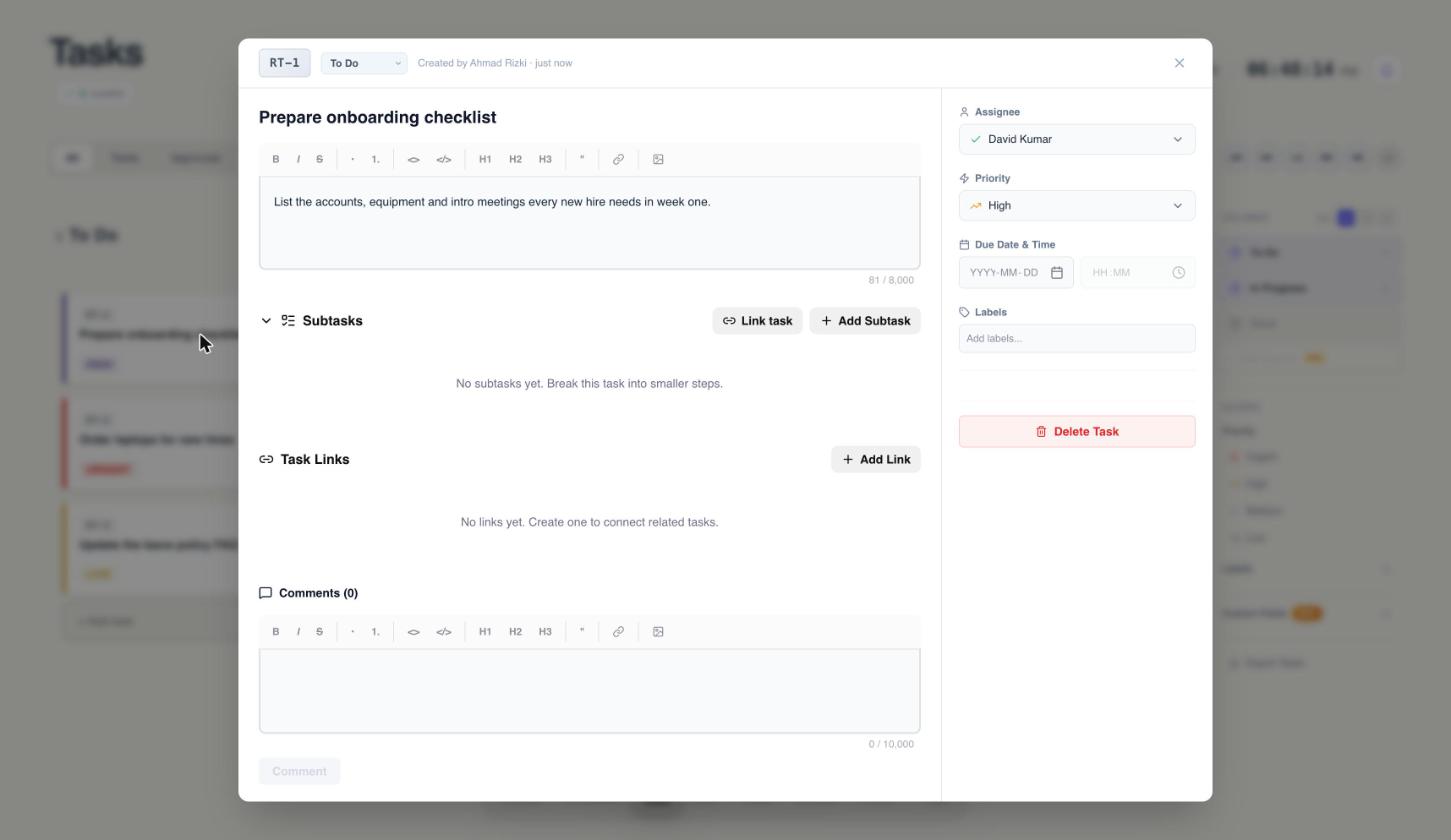
Select a card to open it. Everything about the task is in one place: the description, subtasks, links to related tasks, and the comment thread.
 1234567
- The task code and its column. Select the code to copy a link to the task.
- Title and description.
- Subtasks: break the task into smaller steps, or link an existing task.
- Task links: connect related tasks.
- Comments.
- Assignee, priority, due date and labels.
- Delete the task.
- Subtasks: select Add Subtask to break the task into smaller steps, or Link task to use a task that already exists.
- Task links: select Add Link to connect related tasks.
- Comments: write an update for the team and select Comment.
- Change anything in the panel on the right: assignee, priority, due date and labels.
Find the task you need
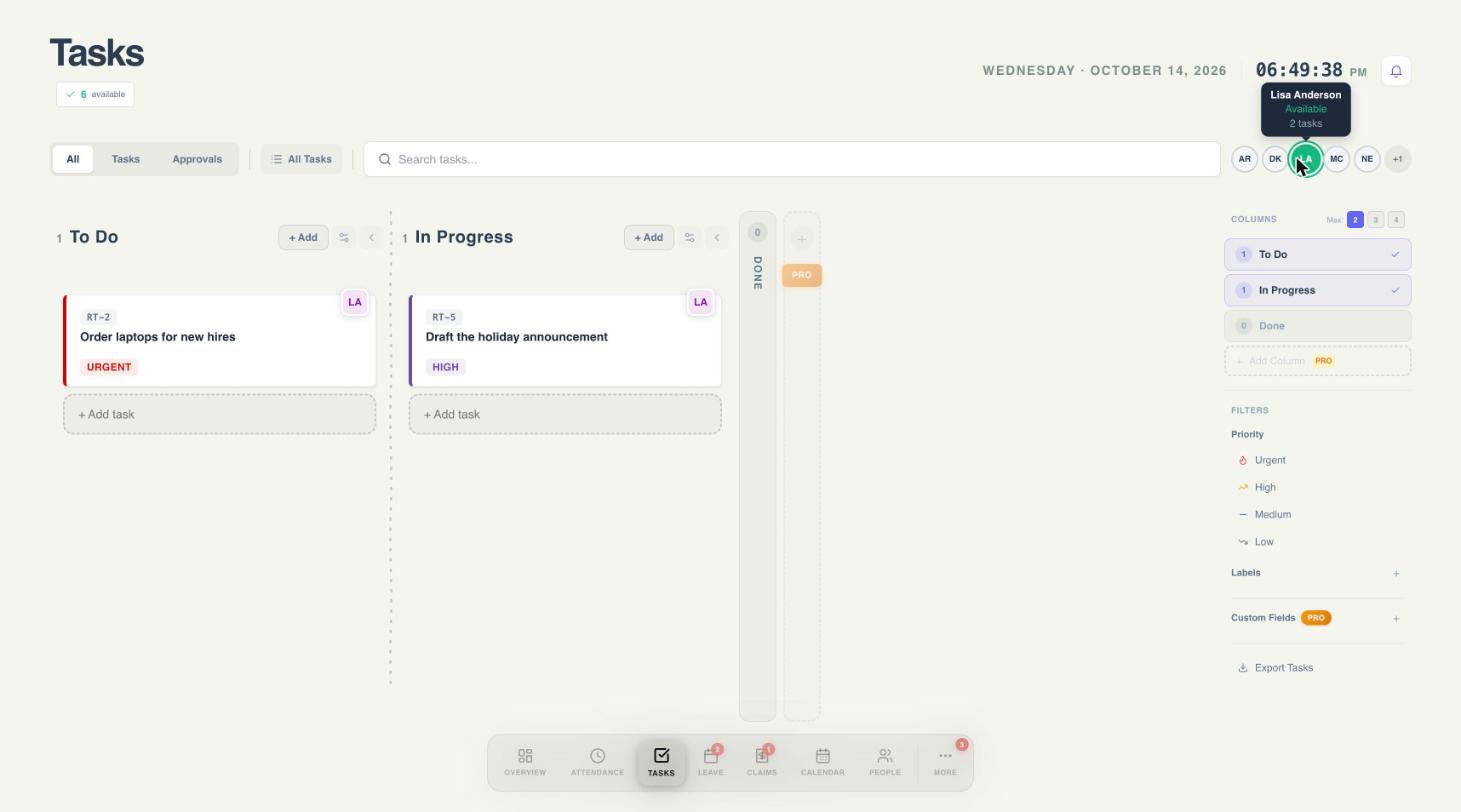
Search by title, or narrow the board with filters. You can combine them.
 12345
12345- Select a person's avatar to filter the board.
- Their availability and how many tasks they have.
- Only their tasks stay on the board.
- Filter by priority.
- Filter by label.
- By person: hover over an avatar to see whether they are available and how many tasks they have, then select it to see only their tasks. Select several avatars to combine them.
- By priority: choose Urgent, High, Medium or Low in the side panel.
- By label: choose a label in the side panel. Use the + next to Labels to create one.
See everything in a table
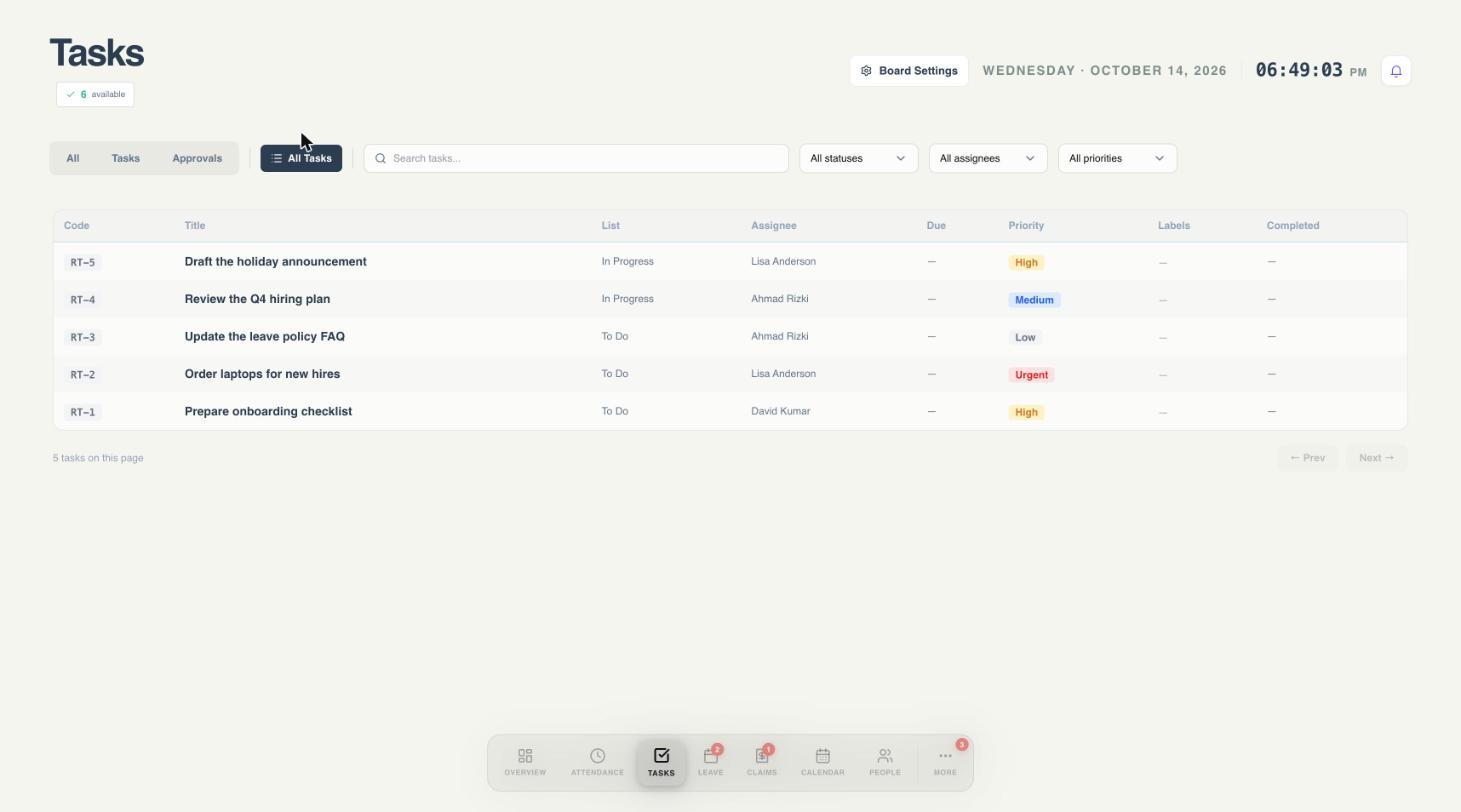
Select All Tasks to see every task in a single table with its code, list, assignee, due date, priority, labels and completed date. Use the filters to narrow it by status, assignee or priority.
 12345
12345- All Tasks opens the table view.
- Search by title or code.
- Filter by status, assignee and priority.
- Every task in one list.
- Board Settings.
Customise the board
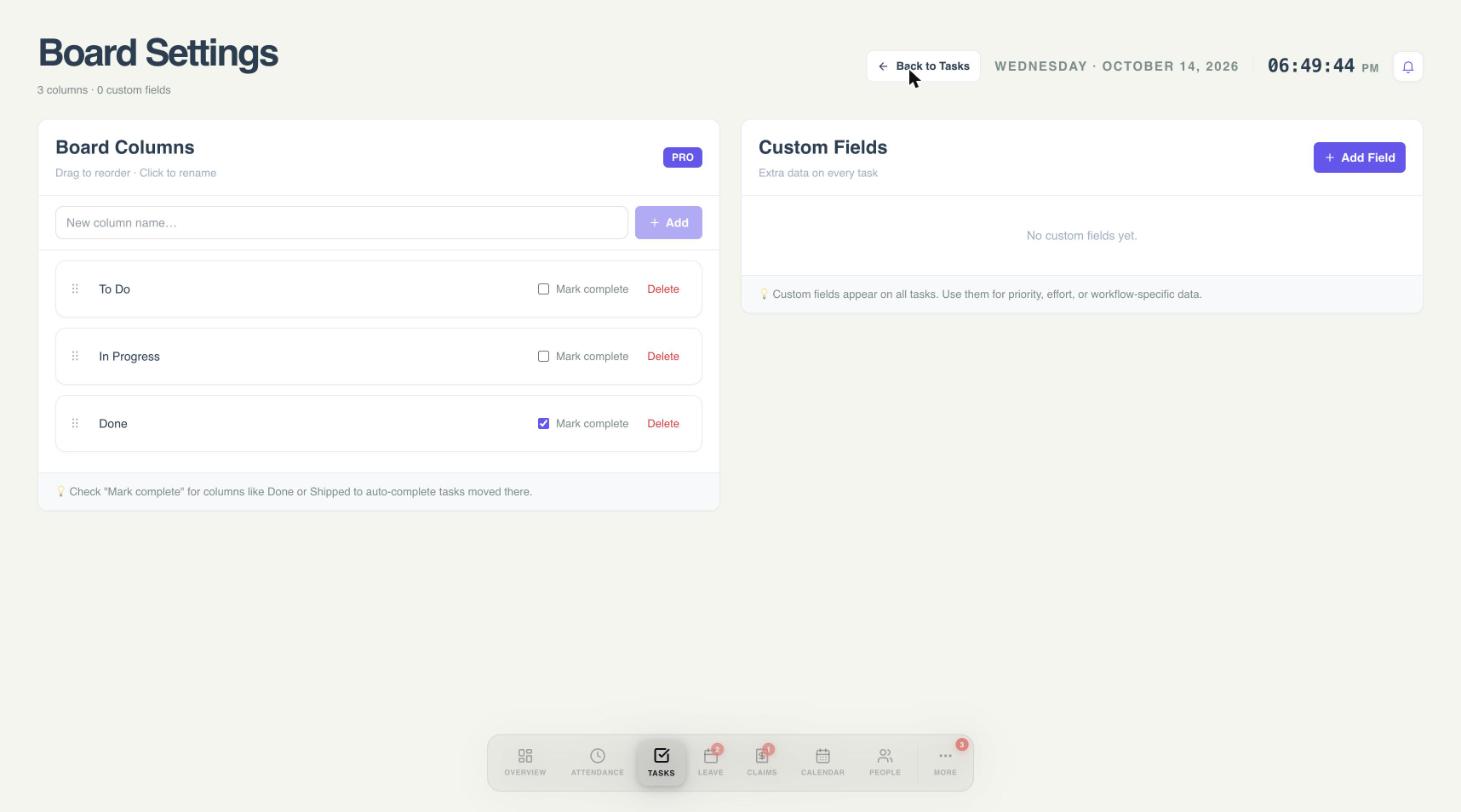
Open Board Settings from the table view to change how your board works.
 12345
12345- Board columns. Drag to reorder, click a name to rename.
- Mark complete: tasks moved into this column are completed automatically.
- Add a new column.
- Custom fields: extra information on every task.
- Add a custom field.
- Columns: drag to reorder and click a name to rename. Tick Mark complete on a column, such as Done, so tasks moved there are completed automatically.
- Custom fields: add extra information, such as effort, to every task.
Adding columns and custom fields are Pro features. Every workspace starts with To Do, In Progress and Done.
Export your tasks
Select Export Tasks in the side panel of the board to download your tasks as a file.
The first time you open Tasks, a short walkthrough shows how the board works. To see it again, open More and choose Replay tour.
Need a hand?
Email my@workived.com and we will help you out.