Chapter 06 · Claims
Claims
Submit expenses, approve them, mark them paid, and set up claim categories.
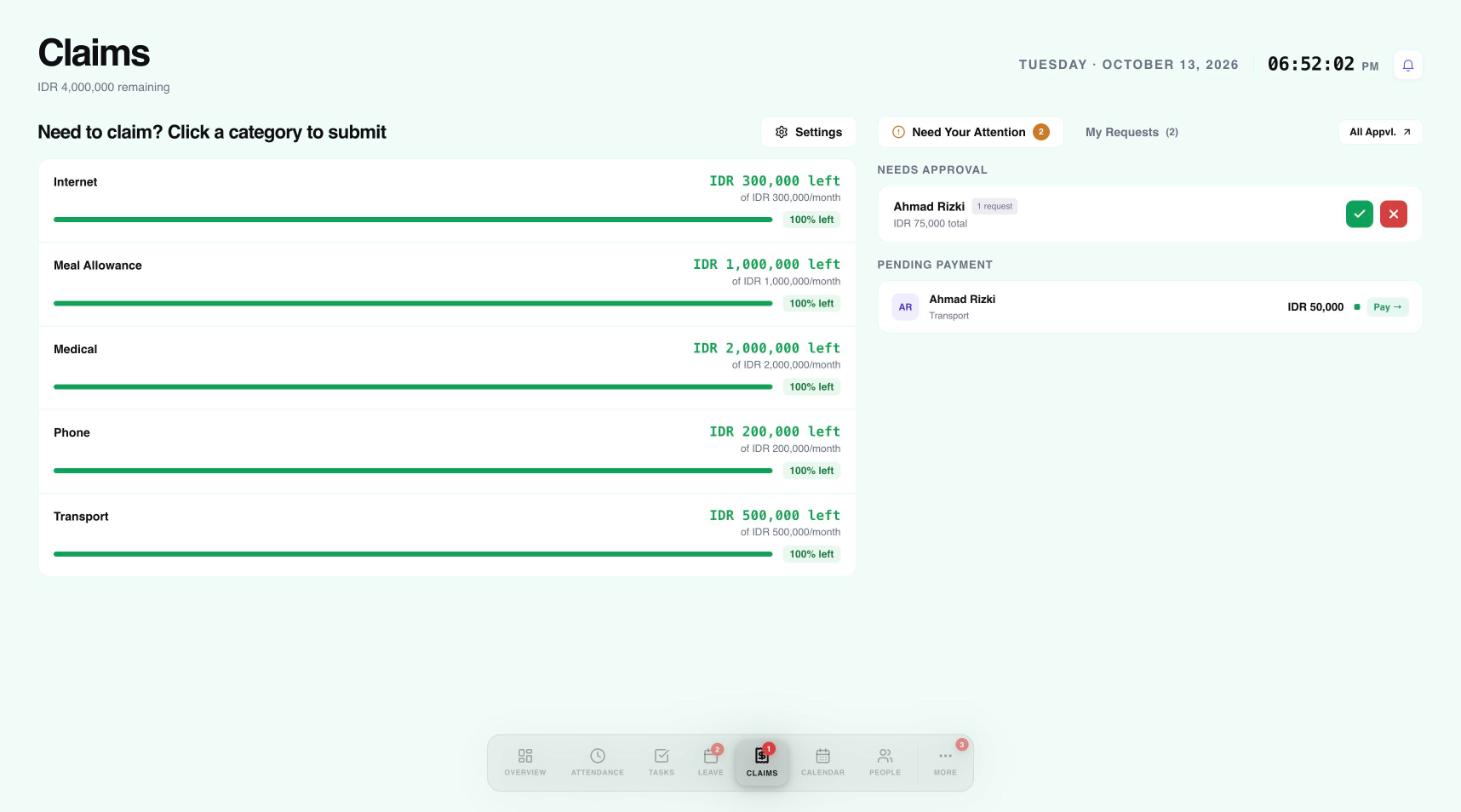
Open Claims to see each category with its monthly limit and how much is left.
 123
123- Categories with the monthly limit left. Select one to submit a claim.
- Claims waiting for approval.
- Approved claims waiting to be paid.
Submit a claim
- Select a category, for example Transport.
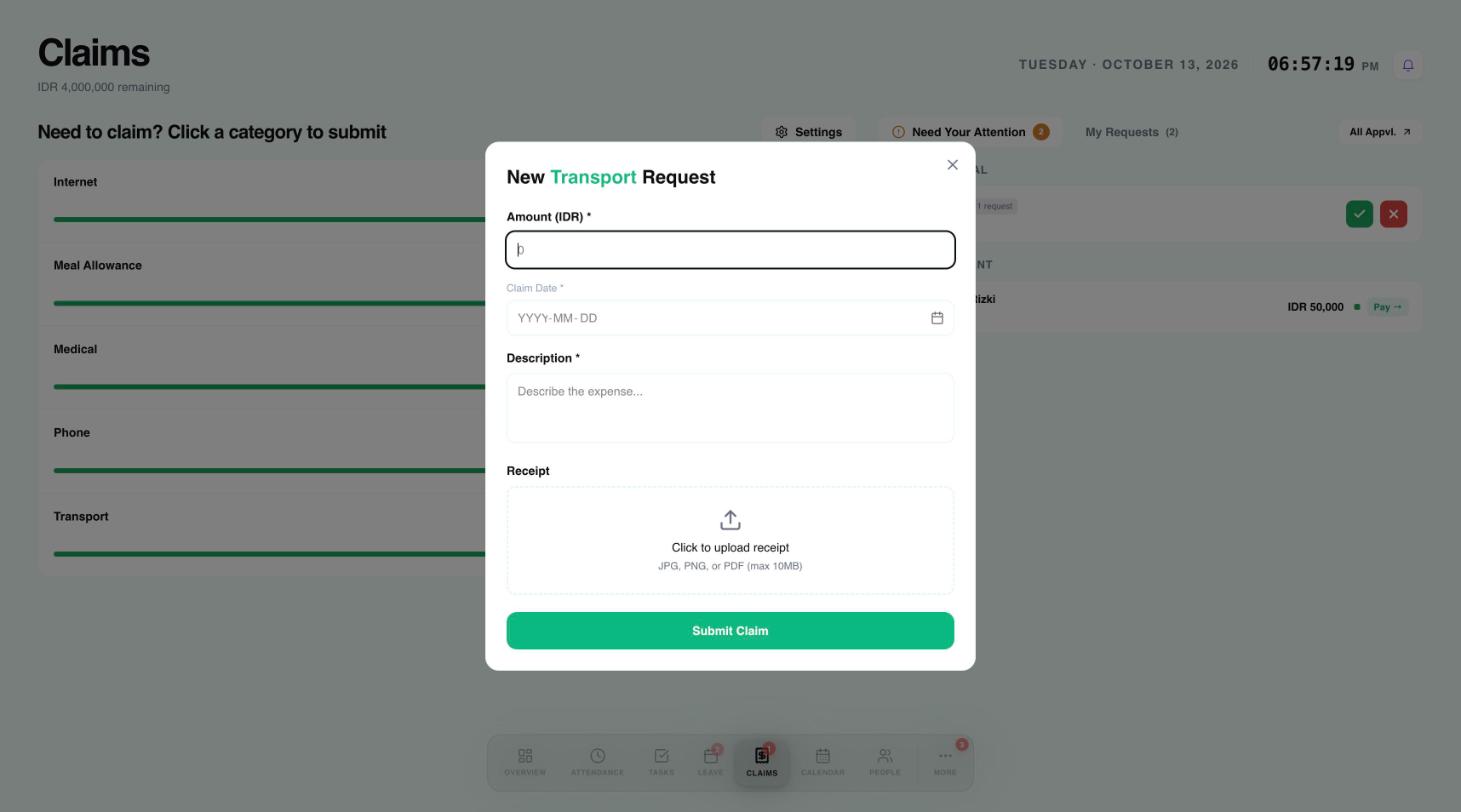
- Enter the amount, the date and a description.
- Attach a receipt if you have one.
- Select Submit Claim.
 12345
12345- Amount in your company currency.
- Date of the expense.
- Describe what the expense was for.
- Attach a receipt: JPG, PNG or PDF, up to 10 MB.
- Submit the claim.
Approve and pay
- Under Needs Approval, approve or reject each claim.
- Approved claims move to Pending Payment. Once you have paid the person, select Pay to mark it as paid.
Change claim categories
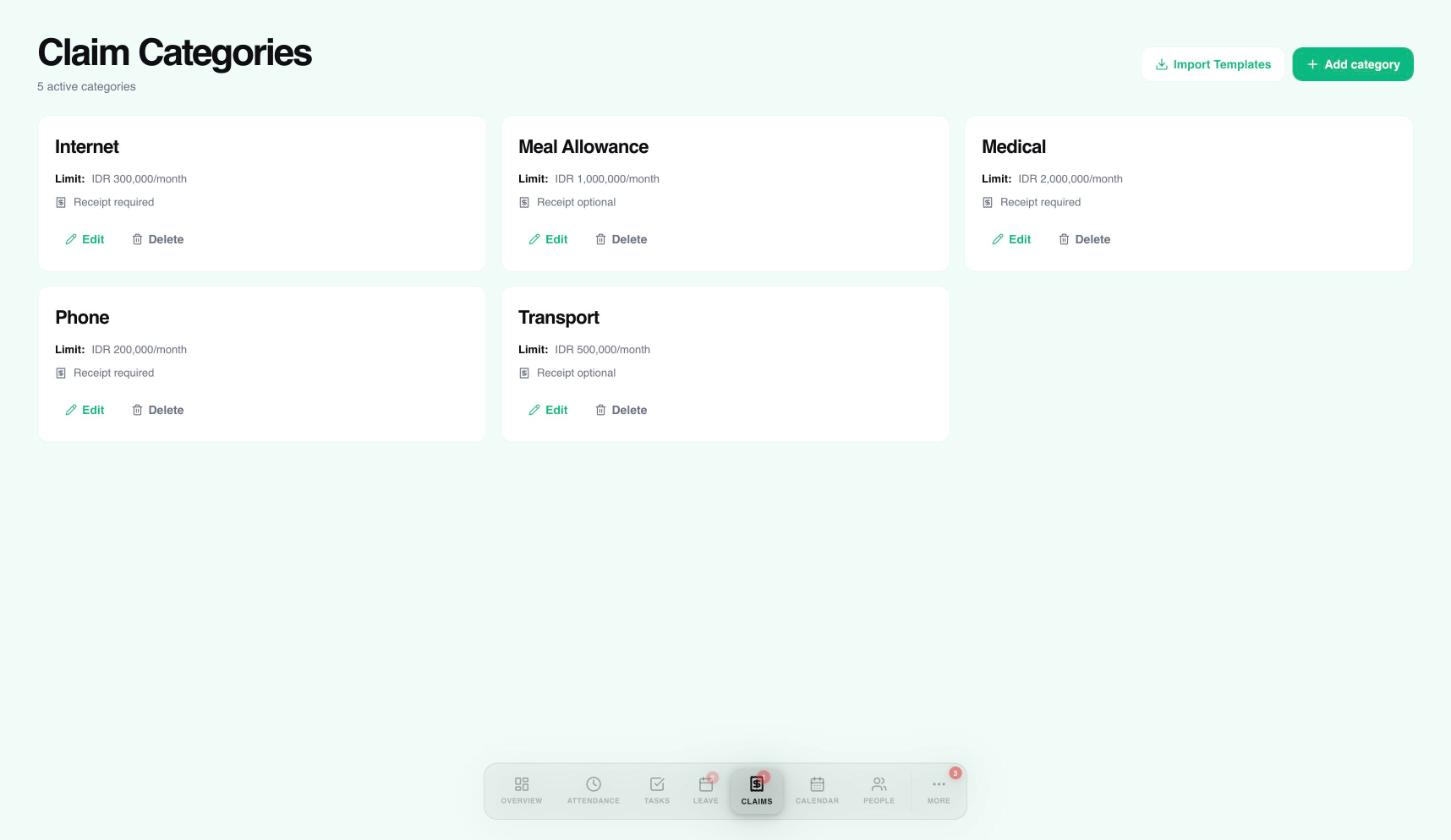
Select Settings on the Claims page to manage categories and their monthly limits.
 1234
1234- Import ready-made category templates.
- Add your own category.
- Each category shows its monthly limit and whether a receipt is required.
- Edit or delete a category.
Need a hand?
Email my@workived.com and we will help you out.