Dashboards
Turn attendance, leave, claims and task data into KPIs, charts and tables on one page.
In short: Dashboards turn attendance, leave, claims and task data into KPIs, charts and tables. Start from a template (HR Overview, Task Tracker, Claims Monitor or Team Directory) or a blank dashboard, then add your own widgets and filter by date range.
Last updated
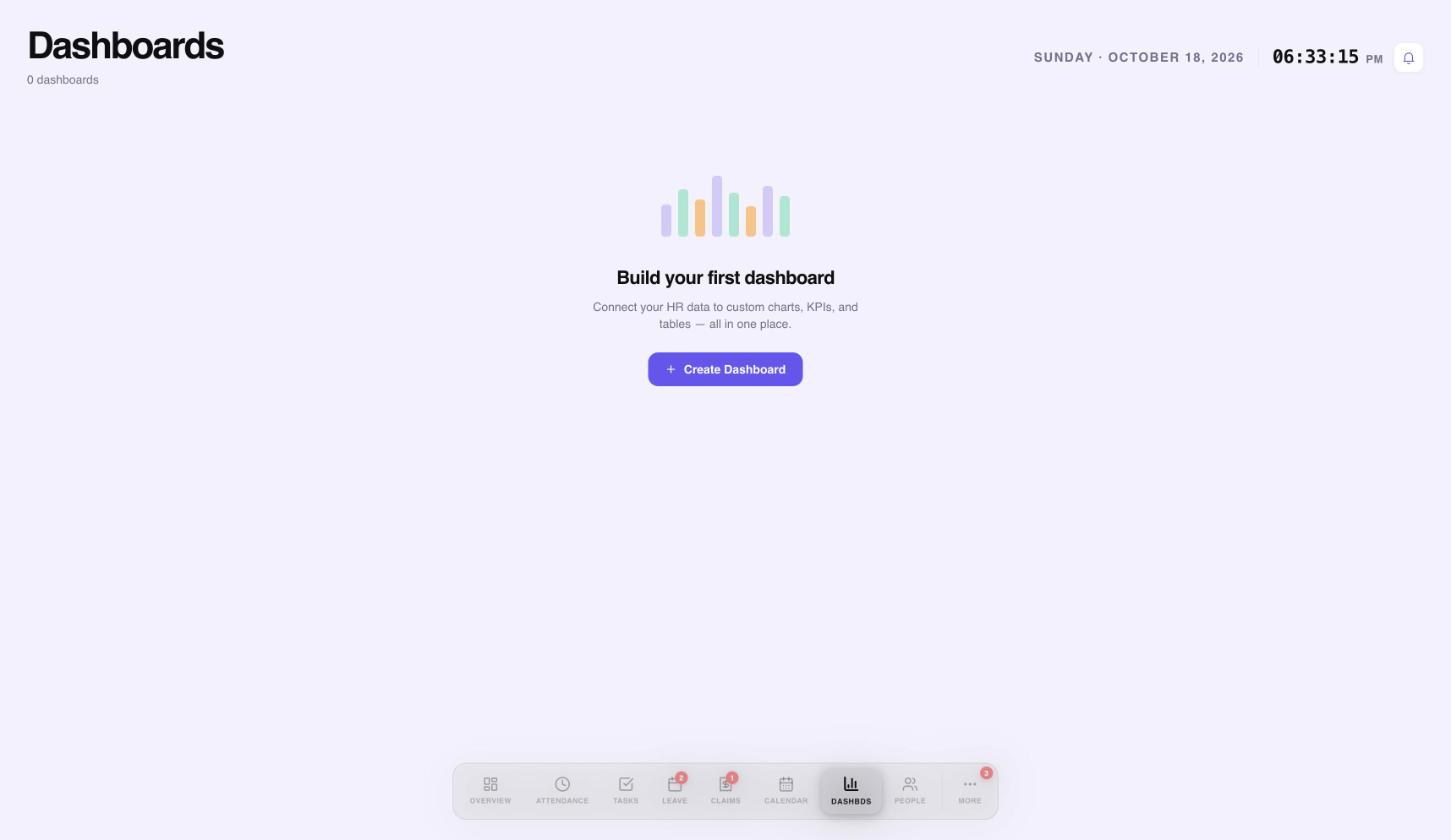
A dashboard turns your attendance, leave, claims and task data into numbers, charts and tables on one page. Open Dashboards from the bottom bar, where it is labelled Dashbds.
 12
12- Create your first dashboard.
- Dashboards is in the bottom bar, labelled Dashbds.
Create a dashboard from a template
- Open Dashboards and select Create Dashboard. If you already have one, select the + tile instead.
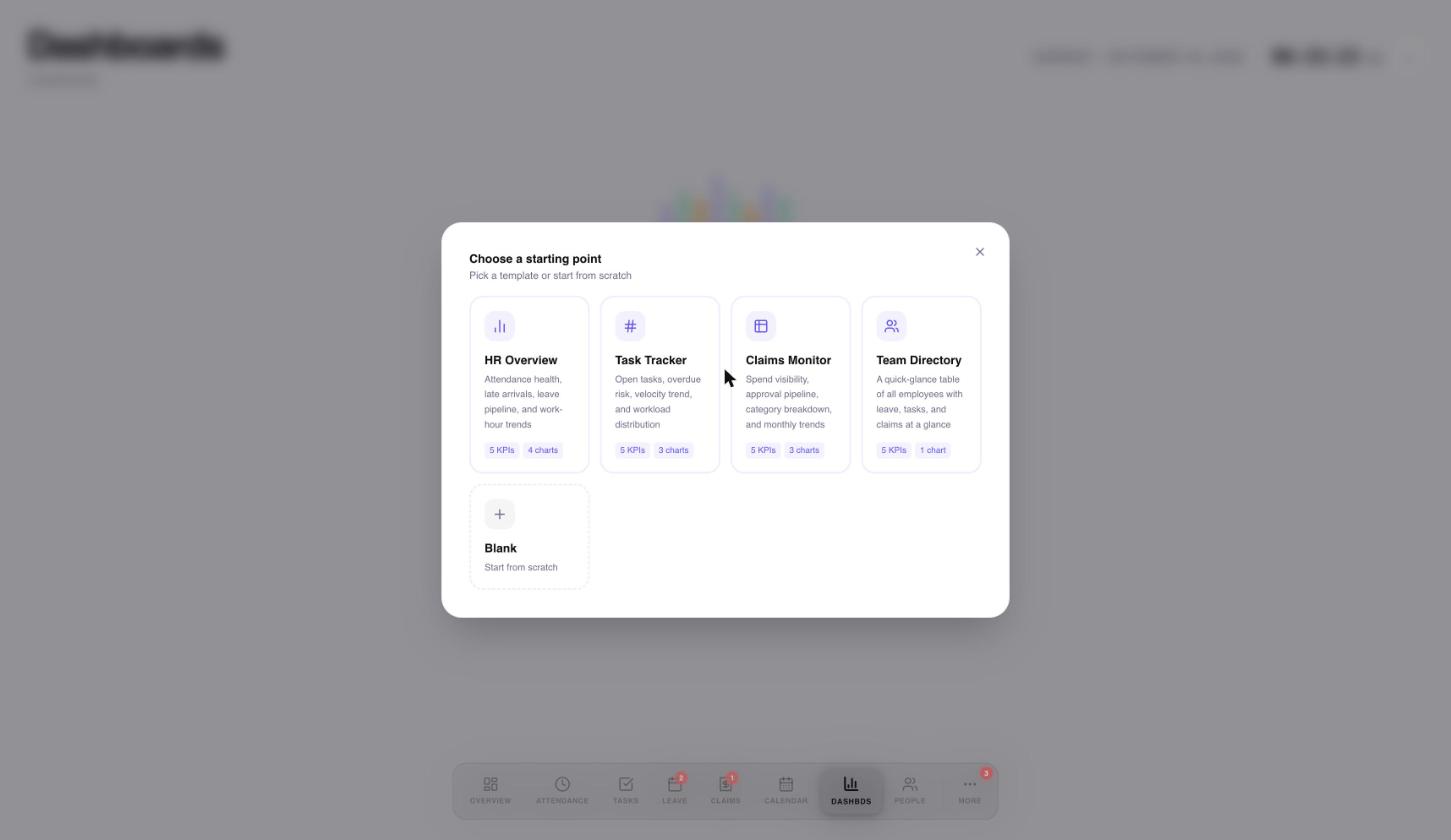
- Choose a starting point: a template, or Blank to build everything yourself.
- Check the name. The template name is filled in for you and you can change it. Then select Create.
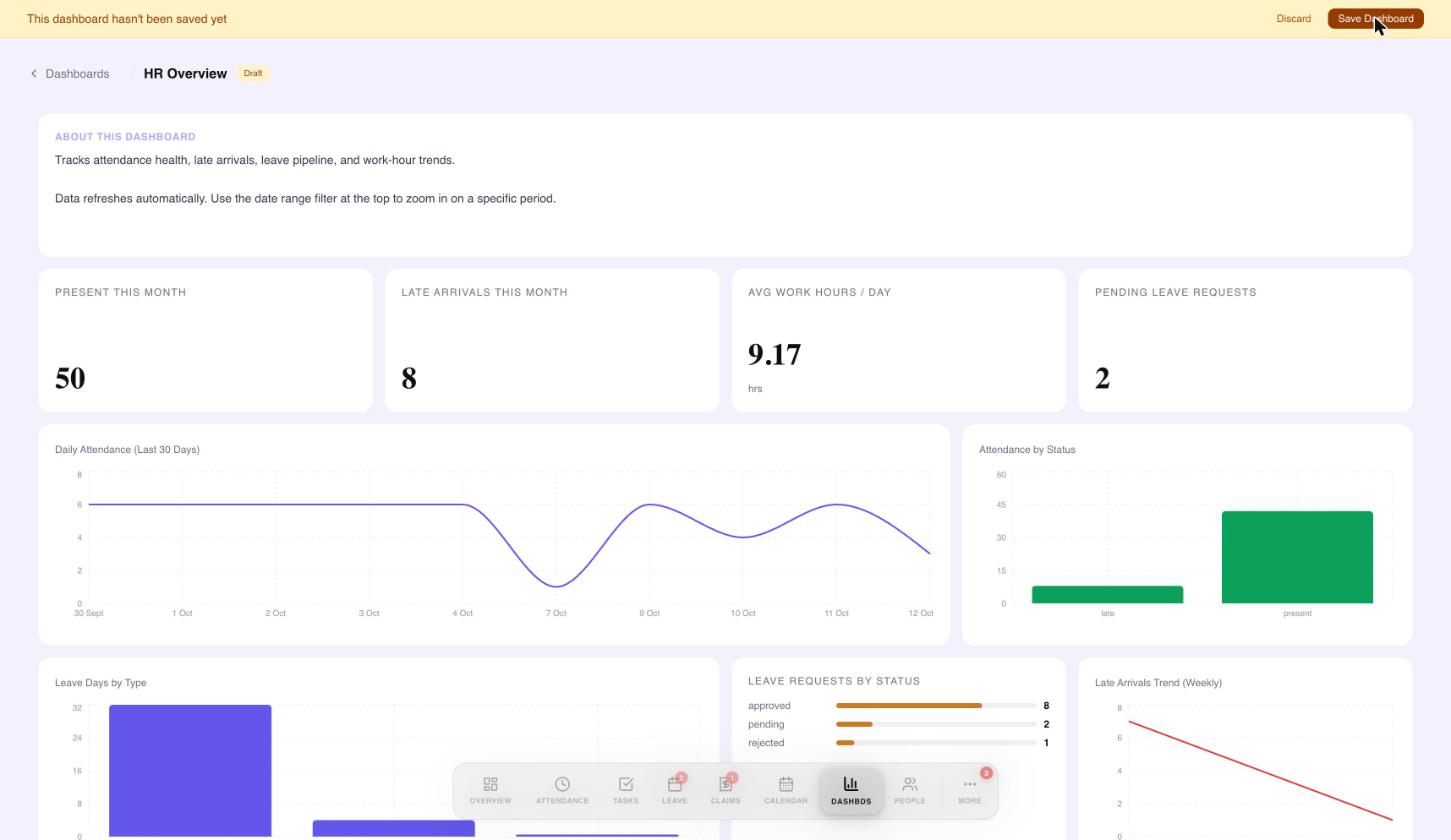
- Review the preview. It is read-only. Select Save Dashboard to keep it, or Discard to throw it away.
 12345
12345- HR Overview: attendance health, late arrivals, leave pipeline and work-hour trends.
- Task Tracker: open tasks, overdue risk, velocity trend and workload distribution.
- Claims Monitor: spend, approval pipeline, category breakdown and monthly trends.
- Team Directory: a table of all employees with leave, tasks and claims.
- Blank: start from scratch.
 12345
12345- The banner tells you the dashboard has not been saved yet.
- Save Dashboard keeps it. Discard throws it away.
- A text note that explains what the dashboard tracks.
- KPI cards: one number each.
- Charts: trends and comparisons.
Nothing is stored until you select Save Dashboard.
Read your dashboard
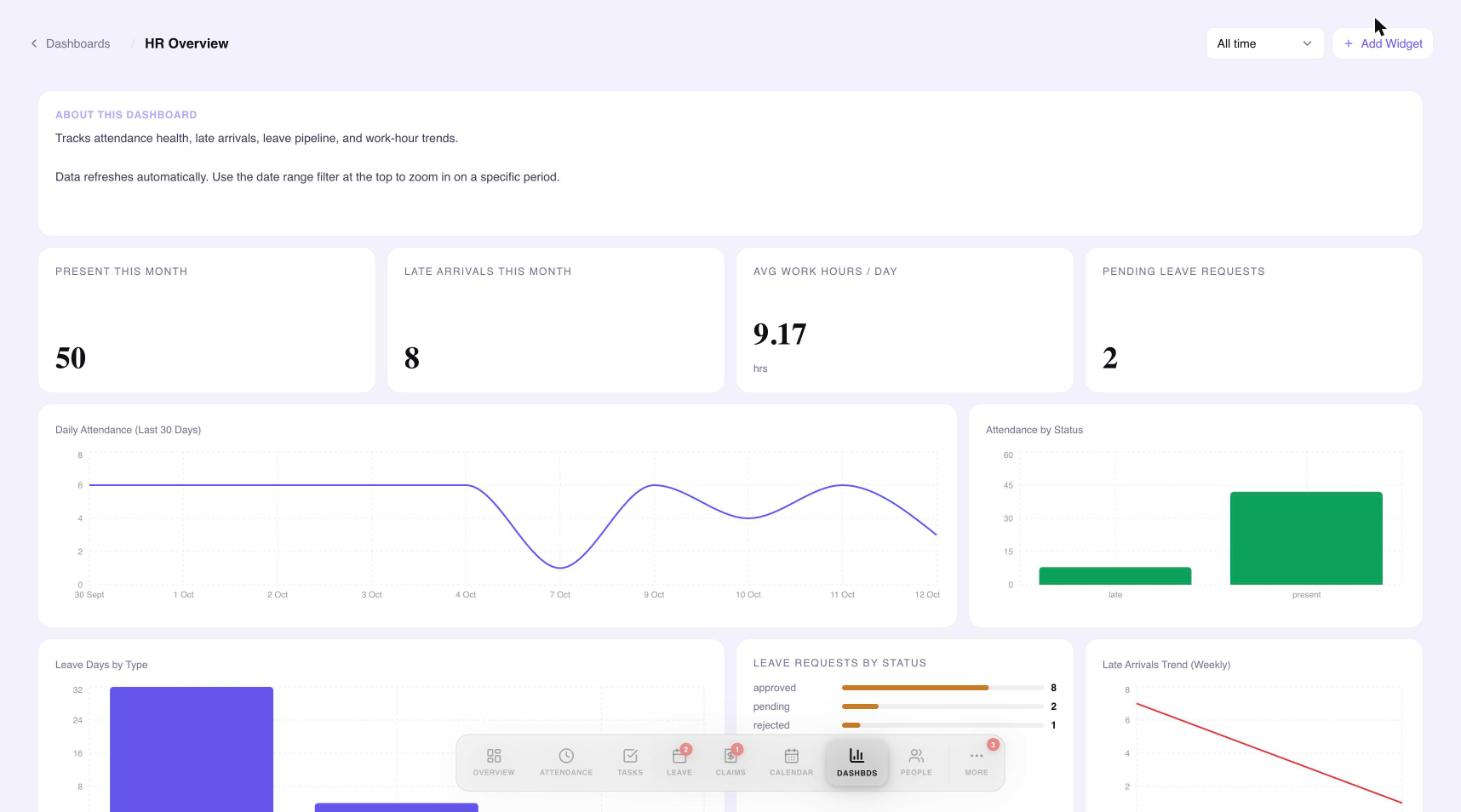
A saved dashboard shows its widgets in a grid. Each kind of widget answers a different question.
 1234
1234- Date range: All time, Today, This week, This month, Last 30 days, This quarter or This year.
- Add a widget.
- KPI cards.
- Charts. Drag any widget to move it.
- KPI: one number, such as how many people were present this month.
- Line: how something changes over time, such as daily attendance.
- Bar: a comparison between groups, such as leave days by type.
- Table: a list of records with the columns you choose.
- Text and divider: notes and spacing that make the page easier to read.
Use the date range at the top right to look at a different period: All time, Today, This week, This month, Last 30 days, This quarter or This year.
Add your own widget
- Select + Add Widget.
- Type a Widget Title, for example Tasks Completed This Month.
- Choose the Type: KPI, Bar, Line, Table, Divider or Text.
- Choose the Data Source: Tasks, Attendance, Leave or Claims.
- Choose how to calculate: Count, Count Distinct, Sum, Average, Min or Max.
- Group the result if you want to, for example by status. Single number gives one value.
- Add filters to narrow the data, then select Preview results to check it.
- Select Save Widget.
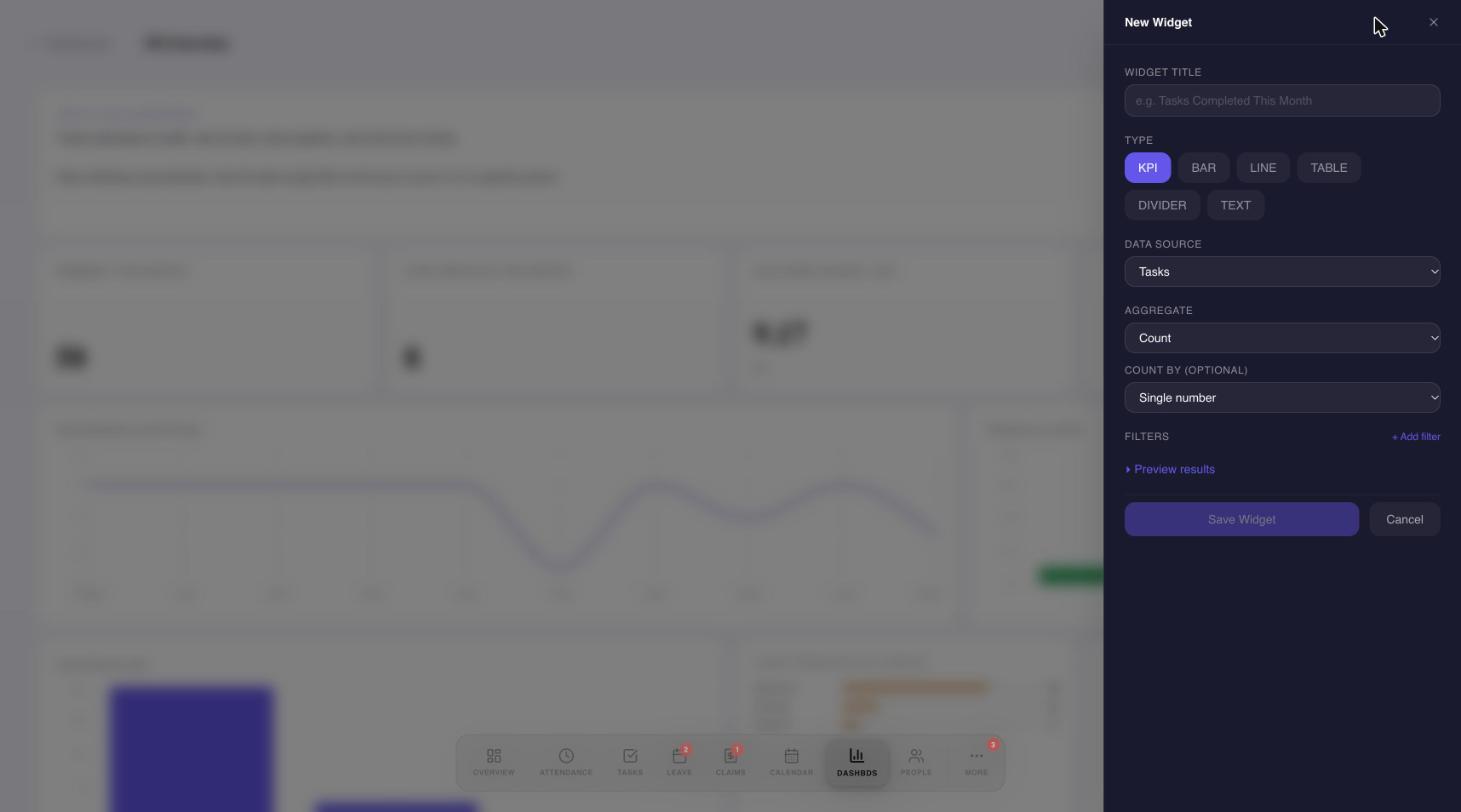 12345678
- Widget title.
- Type: KPI, Bar, Line, Table, Divider or Text.
- Data source: Tasks, Attendance, Leave or Claims.
- How to calculate: Count, Count Distinct, Sum, Average, Min or Max.
- Group the result, for example by status. Single number gives one value.
- Add filters to narrow the data.
- Preview the result before you save.
- Save Widget.
- Line widgets also ask for a date field and whether to group by day, week or month.
- Table widgets let you choose the columns to show.
- Text widgets take your note instead of data.
Move, edit and delete widgets
- Move: drag a widget to a new place. Changes to the layout are saved for you.
- Edit or delete: hover over a widget to show its buttons at the top right. Edit opens the same panel, titled Edit Widget.
Manage your dashboards
The Dashboards page lists every dashboard with its name, a summary such as 5 KPIs and 4 charts, and when it was last updated. Select one to open it, or use the + tile to create another.
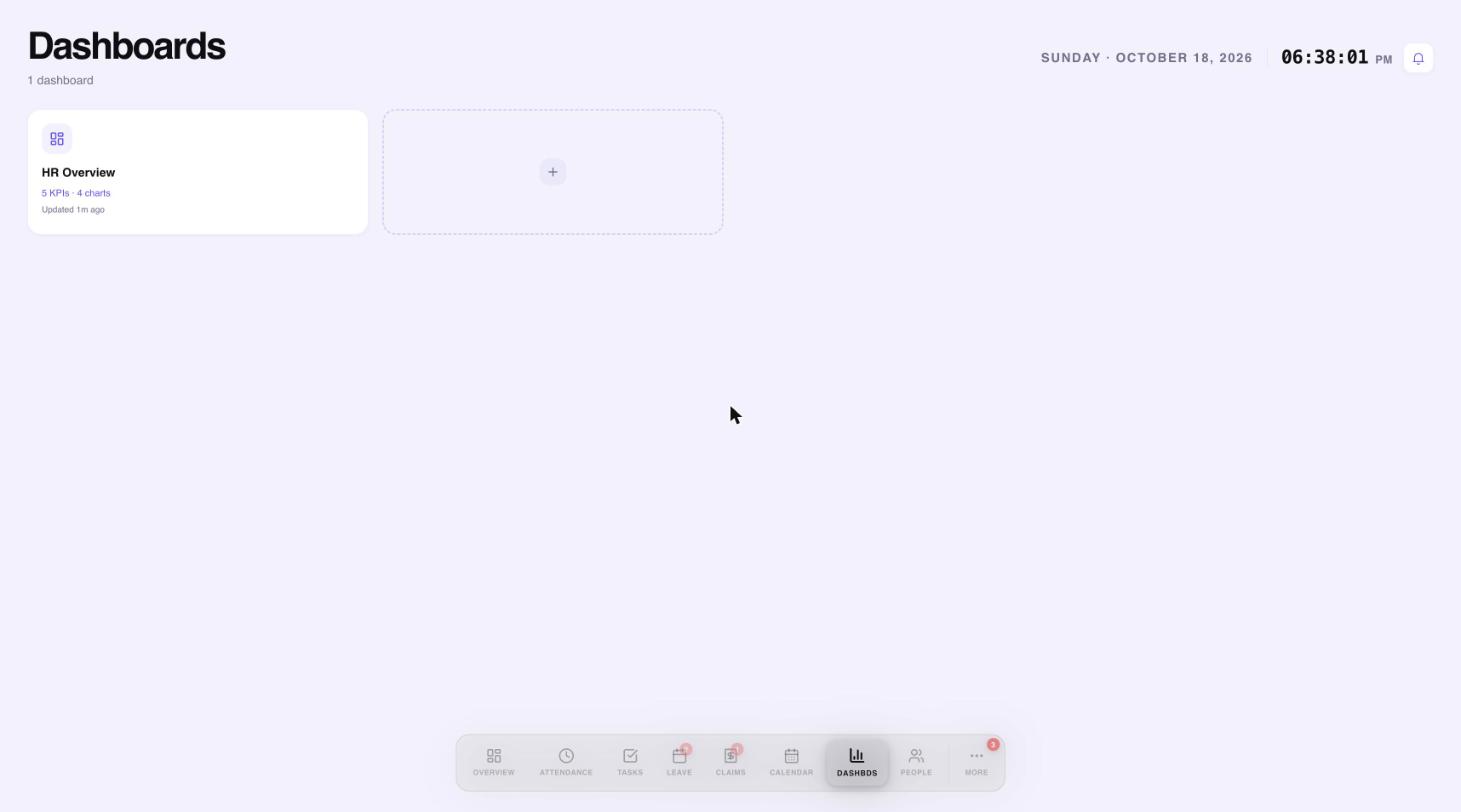 12
12- A dashboard: its name, how many KPIs and charts it has, and when it was last updated.
- Create another dashboard.
To delete a dashboard, hover over its card and select the X. You are asked to confirm first.
Quick answers
What data can I chart?
Tasks, attendance, leave and claims.
Do I have to use a template?
No. Choose Blank to start from scratch.
Does the preview save my dashboard?
No. The preview is read-only. Select Save Dashboard to keep it.
Can I rearrange widgets?
Yes. Drag a widget to move it. Layout changes are saved for you.
Related guides
Need a hand?
Email my@workived.com and we will help you out.